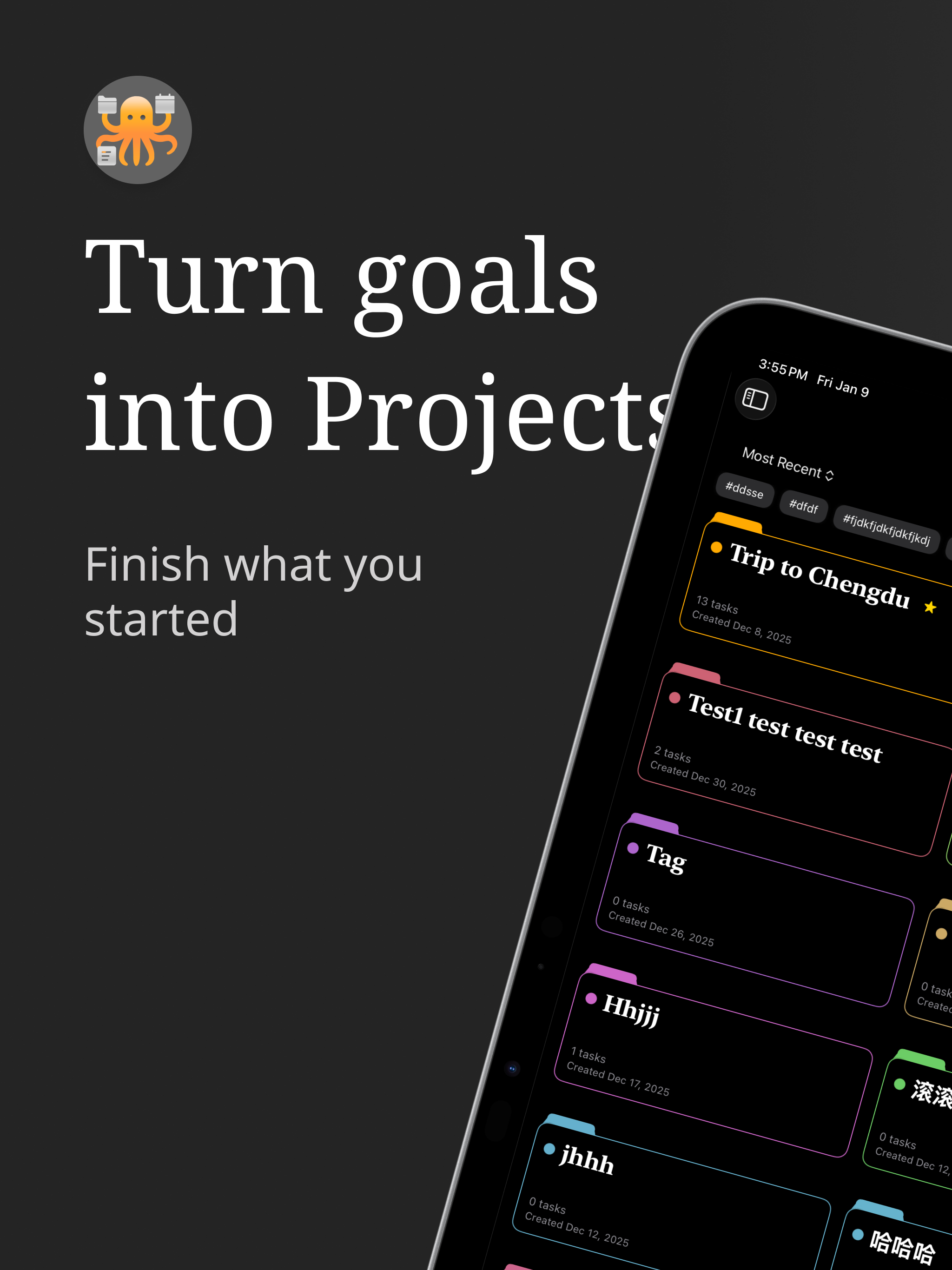
Why is the iPad good for project planning?
The iPad rewards direct manipulation. You point at the milestone you want to move and you move it. You sketch a rough outcome with Apple Pencil before any text exists. There is no taskbar to wrestle, no second display to forget about, just one full-screen surface that respects what you are looking at. That makes it a strong fit for the messy first hour of any project, when you are still figuring out the shape of the work.
The other quiet advantage is focus. On a Mac, planning competes with email, Slack, and seventeen browser tabs. On an iPad, you tend to hold one app at a time. For something as scope-sensitive as project planning, that constraint is a gift, not a limitation.
How do you start a project on iPad?
The fastest workflow that survives real freelance weeks looks like this:
- Define the outcome in one sentence. Not a goal, an outcome. "Brand identity shipped and approved" beats "design phase".
- List three to six milestones. Each one should be the kind of thing a client would notice, discovery complete, first concepts approved, final assets delivered.
- Drop tasks under each milestone. Only the ones that actually move it forward. Skip the busywork.
- Schedule against real hours. Look at this week honestly. If Tuesday is full of calls, do not pretend it is a build day.
That sequence takes about thirty minutes on iPad and produces a plan that holds up. The same logic underpins our longer write-up on how to build a practical project gantt, the device changes, the discipline does not.
What apps work best for project planning on iPad?
Most desktop-first project tools feel awkward when ported. They expect a mouse, dense menus, and tiny click targets. The apps that work well on iPad were either redesigned for touch or built for it from the start. Things 3 is a clean choice for pure task management. OmniPlan covers traditional gantt work for people who want full dependency rigor.
For freelancers and solo operators, Projectholic is the closer match. It runs natively on iPad, structures work as projects, milestones, and tasks, and offers a gantt-style timeline you can place against the real hours you have this week. It is built for the planning question most apps skip: not just what to do, but when it actually fits. For a fuller comparison across devices, see our piece on choosing a gantt app for Apple freelancers.
How do you keep your iPad plan in sync with iPhone and Mac?
The iPad is rarely the only device in a freelance day. You sketch the plan there, then check it on iPhone between calls and finish the actual work on Mac. The cleanest way to keep that flow steady is to use iCloud-backed tools so a project edited on one device is the same project everywhere else, without exports.
Projectholic syncs projects, milestones, and tasks across iPhone, iPad, and Mac through iCloud. Two-way Apple Calendar sync means scheduled work appears next to your meetings, so a planned task and a client call are not living in separate worlds. Combined with Handoff, you can hand a half-edited plan from iPad to Mac without thinking about it.
What's a sustainable iPad planning rhythm?
The plan you build on Monday is not the plan that survives Friday. To keep the iPad version of your project healthy, run a short weekly review on the device itself, fifteen minutes is enough.
- Mark the work that actually finished.
- Re-estimate the tasks that quietly grew.
- Move blocked items instead of pretending they are still on track.
- Check whether any delay has put a later milestone at risk.
Then plan Monday. The iPad is well-suited to this rhythm because the review feels like reading rather than admin. For more on the broader solo-operator system around it, see the freelancer project planning tool guide.
When is the iPad not the right device for project planning?
Honestly, there are real limits. Heavy spreadsheet planning, large multi-stakeholder coordination, and document-heavy contracts are still smoother on a Mac. If your project plan lives inside a forty-tab spreadsheet shared with a vendor, do not fight your tools.
The iPad is at its best for the planning that actually drives a freelance week, defining outcomes, sequencing milestones, scheduling tasks honestly, and reviewing what shifted. For that work, a downsized Mac is the wrong mental model. A thinking surface is the right one.